Printing the second side on a whole stack wastes the paper when the back comes out upside down or scaled. Print one sheet, fold it on two creases, and compare the two faces before you print the rest.
Print one sheet, fold it, and compare the two faces before you print the batch. Adobe Acrobat’s print help, updated June 21, 2026, calls double-sided printing duplex, back to back, front and back, or two-sided printing, and says the printer driver controls the option. In the Print dialog you turn on print on both sides and choose an edge to flip. Adobe’s page-size help, updated September 23, 2025, says Actual size prints without scaling, while Fit reduces or enlarges each page to the printable area of the selected paper. Finish size, bleed, panel width, and ink stay blank until you copy them from your file and from the printer.
| Item | What you record | Why it matters |
|---|---|---|
| Outside and inside pages | The PDF page you send to each face | You copy the page numbers from your own file |
| Flip edge | The edge name shown in the driver | Adobe says you choose an edge to flip, and the driver holds that control |
| Size option | Actual size, Fit, Shrink oversized pages, or the percent you typed | Fit scales every page to the printable area. Actual size leaves the page unscaled |
| PDF page size and tray paper | The size in the file, and the paper in the tray | Adobe’s “Choose paper source by PDF page size” uses the PDF page size to pick the tray |
| Test marks | TOP, FRONT, and BACK on a spare sheet | The marks show whether the printed back matches the face you wanted |
| Finish size, bleed, panel width, ink | Blank | Those figures come from the printer’s own template. They are empty here |
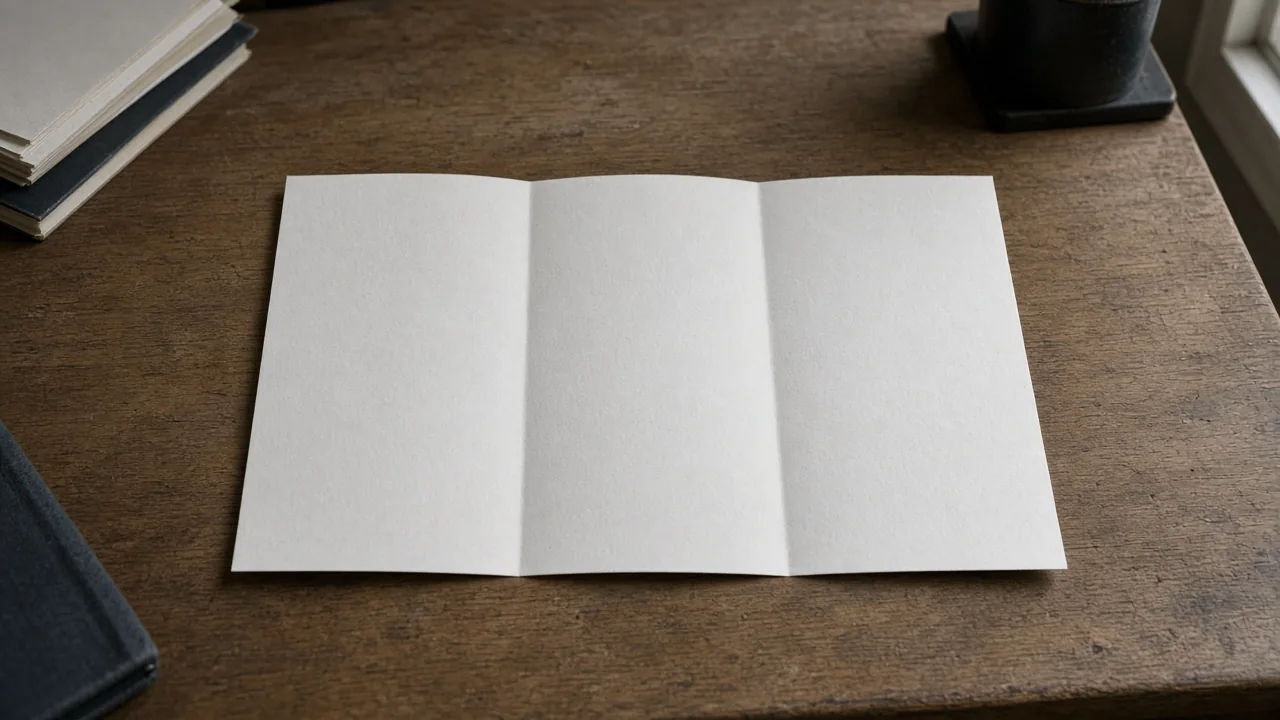
A blank sheet with two vertical creases on a wooden desk.
The creases are the two folds. The sheet has no printed panels on it.
What do you mark before the first sheet?
Mark a spare sheet, then print the designed file once and fold that print. On one face of the spare sheet write FRONT, and draw an arrow labeled TOP along the edge you want at the top. On the other face write BACK, and draw a TOP arrow that points the same physical direction through the paper. Keep that spare sheet beside the printer. It is the orientation key. It is a blank record, so the cells below stay empty until you fill them from the file and from the driver.
| Field | Copy it from | Leave blank when |
|---|---|---|
| Outside page | The PDF page you send to the front | The file is closed |
| Inside page | The PDF page you send to the back | The file is closed |
| Flip edge | The edge name in the Print dialog or in printer properties | You have not opened the duplex control |
| Size option | Actual size, Fit, Shrink oversized pages, or your percent | The Size menu is closed |
| PDF page size | Document properties or the print preview | You have not read the page size |
| Paper in the tray | The pack or the tray label | You have not read the tray |
| TOP arrows after the fold | Same direction, or opposite | The sheet is still flat |
| Face that stays outside when closed | The cover panel, or another panel | The sheet is still flat |
| Where the second side landed | On the reverse, or on the same face as the first side | Only one side has been printed |
Print a single copy of the designed PDF with those settings. Adobe’s Print dialog can print all pages, the current page, or a subset you type, and More options covers even or odd pages and reverse pages. For a two-page file, print both pages on that one sheet through the duplex setting. Fold the printed sheet twice. Hold it next to the marked spare sheet.
Takeaway: Fill the nine fields from the file, the driver, and the folded sheet. An empty cell stays empty.
Where do you turn on back-to-back printing?
Turn on print on both sides in the Print dialog, and choose an edge to flip. Adobe’s help, updated June 21, 2026, says you can print double-sided when the printer supports duplex. The same page says the printer driver controls the options. If the printer supports duplex and the choice is missing, open printer properties from the Print dialog’s Properties button, or from the printer’s own preferences.
wikiHow’s brochure article, updated February 19, 2026, gives a menu path in three programs. In Word it says to open File, then Print, then change Print One-Sided to Print Double Sided. On a Mac it says to open Copies & Pages, then Layout, then Two-Sided, then Long-Edge Binding. The same Word steps set Orientation to Landscape. In Preview it says to choose the horizontal orientation, then Layout, Two-Sided, and Long-Edge Binding. In its Acrobat method it says to print page 1 only, put the sheet back, and print page 2.
Those paths are wikiHow’s clicks for the programs it names. Long-Edge Binding is the Mac selection in that article. It is one setting in that article’s steps. A community answer on the same page, from Paul Sargent, answers “Why is the other side of the brochure upside down?” by telling the reader to check flip on short edge or long edge and choose the other option. wikiHow’s warning on that page says printers differ, and a duplex setting that works on one printer can misplace the job on another. If the TOP arrows disagree after the fold, switch the edge and print one more sheet.
When the printer has no duplex unit, wikiHow says to use Manually Print on Both Sides, or to print the first page, take the sheet out, and feed it again for the second page. Its Acrobat sequence says to place the printed paper face-up with the leftmost part going into the printer first, and to place it face-down if the sheet already came out face-up. The same method says that if the second side is wrong, try another direction until page 2 lands on the reverse. Record the direction that matched your marked sheet. The next printer can need a different one.
A blank sheet with one corner lifted on a light wood desk.
The lifted corner is the turn between the two faces. Both faces in the picture are blank.
Takeaway: Choose an edge in the driver, print one sheet, and switch the edge only if the TOP arrows disagree.
Which size setting keeps the fold lined up?
Choose Actual size when the printed page should stay the size of the PDF. Adobe’s page-size help, updated September 23, 2025, lists the Size choices under Page Sizing & Handling.
| Option | What Adobe says it does |
|---|---|
| Fit | Reduces or enlarges each page to fit the printable area of the selected paper |
| Actual size | Prints without scaling. Pages or selections that do not fit the paper are cropped |
| Shrink oversized pages | Shrinks large pages to the selected paper. Small pages stay at their own size |
| Custom Scale | Resizes the page by the percentage you specify |
| Choose paper source by PDF page size | Uses the PDF page size to determine the output tray, rather than the page setup option |
Page Setup, in the print help updated June 21, 2026, can change paper size, paper source, or orientation. Read the PDF page size and the paper in the tray, and write both into the record. If they differ, Actual size crops whatever does not fit, and Fit scales every page to the printable area. Shrink oversized pages shrinks a large page and leaves a small page alone. The print preview in Acrobat updates as you change these settings. Use the arrow buttons at the bottom of that preview to see the other page before you commit the sheet.
wikiHow’s Word and Acrobat steps set the brochure to landscape. Use that orientation when your PDF is landscape. When your PDF is portrait, keep the file’s orientation and still print the one test sheet. This page has no panel widths and no required paper size. Copy the size from the file into the blank cell.
Close view of two creases in a blank sheet.
The two creases are where you fold. The picture shows the paper only.
Takeaway: Write the PDF page size and the tray paper into the record, then print the test sheet at Actual size unless you have a reason to scale.
What do you change when the folded sheet is wrong?
Change one setting, then print one more sheet. The table uses the checks on the marked spare sheet.
| What the folded print shows | Setting to reopen | What to change | What stays blank |
|---|---|---|---|
| TOP on the back points the opposite way from TOP on the front | Flip edge | Switch to the other edge. Paul Sargent’s answer on the wikiHow page says to check short edge or long edge and choose the other one | The name your driver uses, until you read it |
| Margins moved, or the page grew or shrank | Size | Switch to Actual size. Fit scales each page to the printable area. Custom Scale uses the percent you typed | The PDF page size and the tray paper, until you read them |
| The second side printed on the same face as the first | Duplex, or the way you fed a manual second pass | Open printer properties if the duplex choice is missing. On a printer with no duplex unit, feed the sheet again. wikiHow says to try another direction if page 2 is wrong | Your printer’s feed path |
| The cover panel is an inside panel when the sheet is closed | Page order | Swap which PDF page you send to the front and print one sheet | Which page your file calls the outside, until you read the file |
| Booklet was selected | Page layout | Turn Booklet off for this two-page sheet | Blank |
Adobe’s Booklet option, in the print help updated June 21, 2026, lays the pages out two per sheet. When you collate, fold, and staple those double-sided sheets, the result is one book with the pages in order. That layout is a booklet. A two-page trifold is one sheet folded twice. Leave Booklet off while you run this check.
Takeaway: Change the one row that failed, print one sheet, and fold it again before you print the batch.
When this does not apply
This check is for a two-page file you print on both sides of one office sheet and then fold twice. A commercial printer’s template names finish size, bleed, and margins for that shop. Copy those numbers from the shop into your file. They stay blank in the table above.
Adobe’s Booklet layout belongs to a folded, stapled book. Use the printer’s imposition for that job.
The file still has to come from a program that can export the PDF. The brochure design software comparison matches the tool to who edits the file later. Color conversion is a separate handoff, on the CMYK and RGB print sheet.
This site does not design or print the file. More print notes are in the article index.
Method and sources
Duplex, the edge-to-flip control, the driver note, Page Setup, the Pages to Print choices, and the Booklet layout are from Adobe’s “Print PDFs” help, last updated June 21, 2026. Fit, Actual size, Shrink oversized pages, Custom Scale, and Choose paper source by PDF page size are from Adobe’s “Page size” help, last updated September 23, 2025. The Word, Preview, and Acrobat click paths, the Long-Edge Binding selection, the manual second pass, the community answer on an upside-down back, and the warning that printers differ are from wikiHow’s “How to Print Brochures,” updated February 19, 2026. The copies were saved on October 11, 2026, and read again for this page on October 14, 2026. No office printer was run for this page. wikiHow says its tech team followed the steps in wikiHow’s article. That statement covers wikiHow’s steps. It does not cover your driver. Finish size, bleed, panel width, and ink are blank because those pages do not give them.
Related reading
- Brochure design software and cost: choose the program that exports the PDF before you print the test sheet.
- CMYK and RGB print handoff: confirm who converts color after the fold check, if the printer has named a profile.
- Article index: the rest of the print notes.