Converting an RGB brand file before the printer names the output profile can force a rework, because that conversion writes new color values into the PDF. Confirm who converts, which ICC profile is the target, and what the PDF must carry, and change those values only on a copy.
If the printer has not named an output profile, leave the working file alone. Adobe Acrobat’s color conversion help, updated February 26, 2026, says the Convert Colors command changes the color values stored in a PDF. A temporary conversion during printing or viewing leaves those stored values in place. Adobe InDesign’s color-management help, updated June 2, 2026, can override the document profile for one print job and leave the document unchanged. Use the table to name who converts, then fill in the confirmation block and check the exported copy.
Key points:
- RGB and CMYK are different color models. Acrobat says colors often have to be converted when the models do not match, such as when RGB images are sent to a printer.
- The target is an ICC profile named for this device or press condition. A profile from another shop is that shop’s condition.
- An output intent describes how a possible output device or production environment reproduces color. Many PDFs that are not PDF/X or PDF/A files have none.
- One printer’s request to convert, or to leave the file in RGB, covers that printer’s workflow.
The opening image is an illustration of a screen and a printed sheet. It shows a sample scene, with no measurement and no named print job.
Who should convert the file?
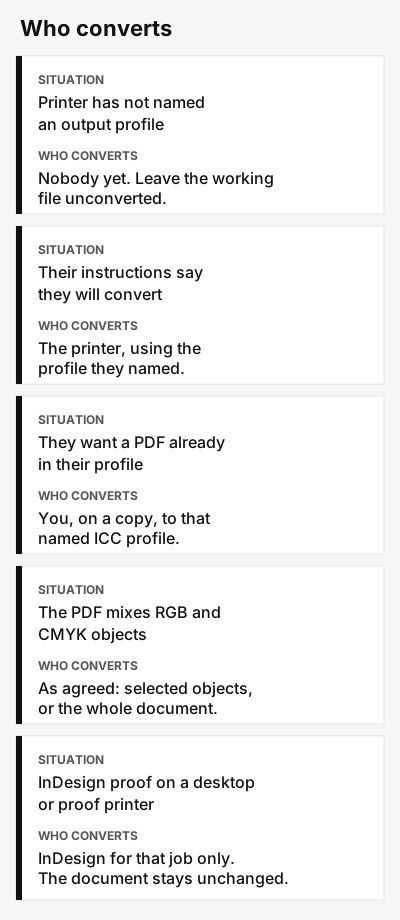
Leave the conversion unassigned until the printer names the target profile and says who applies it. If their written instructions say they convert incoming files, they convert. If they ask you to deliver a PDF already in their profile, you convert a copy to that profile. A conversion aimed at no named profile rewrites the stored values. Keep the RGB original.
| Situation | Who converts | Confirm |
|---|---|---|
| The printer has not named an output profile | Nobody. Leave the working file as it is | The profile name, and the person who will apply it |
| Their written instructions say they convert incoming files | The printer, with the profile they named | The color space they asked you to send, so you do not also convert the file |
| They ask you to deliver a PDF already in their profile | You, on a copy, using that named ICC profile | The profile spelling, and that the export is a duplicate of the RGB file |
| The PDF contains both RGB and CMYK objects | The person you agreed with: selected objects, or the whole document | A list of the color spaces still in the file |
| You are proofing from InDesign to a desktop or proof printer | InDesign, for that print job only | The proofing device’s ICC profile, and that the handoff file was not overwritten |
Acrobat looks at the source color space of each object to decide whether a conversion is required. An object that already carries an embedded profile is managed with that profile. Unmanaged colors do not use a profile, so Acrobat applies one temporarily, from the Color Management preferences or from a profile selected for local press conditions. Treat that temporary profile as a stand-in until the printer names the target for this job.
If their instructions say they will convert, send the color space they asked for. Converting the file yourself as well sets up two conversions. InDesign’s print help gives one concrete case of that problem: when InDesign is already determining colors, turn color management off in the printer driver so the driver does not convert the job a second time. That driver step belongs to the InDesign print dialog. It is a warning about two conversions, and it is specific to that dialog.
Takeaway: Write a person’s name next to the conversion before you change any color values.
Which ICC profile is the target?
The target is the ICC profile that matches this output device, or a profile made for this printer. InDesign’s printing help says you can obtain an ICC profile from the printer company for some printers, or use one custom-made for that printer, and that the profile can describe the paper. Acrobat’s Convert to Profile command uses a destination profile to convert objects to a common ICC profile for an output device. Ask for the profile name they want on this job. A profile you liked on a previous job describes that earlier device and paper.
If the printer has not sent a name, the target is still unknown. Stop there. Acrobat also lets you pick profiles for local press conditions when a color is unmanaged. A preference you set on your own computer is your preference, until the printer tells you it is the target for this job.
Takeaway: The target profile is a name the printer supplies or builds for this device and paper.
What should the PDF carry?
The PDF should carry the agreed target where the printer’s workflow can read it: an embedded profile on the converted objects, an output intent on the document, or both, if their instructions say so.
Acrobat describes an output intent as the color reproduction characteristics of a possible output device or production environment in which the document is printed. For a PDF/X file, Acrobat uses the output intent to manage the colors. The command that converts colors to an output intent is available only when the document already has one. Acrobat notes that PDFs which do not follow a standard such as PDF/X or PDF/A often lack an output intent. If the export has none, write “none” in the block below, and wait for the printer to name a profile.
A mixed-space PDF is a separate question from the output intent. Acrobat’s Edit Object tool can convert selected objects, for example an RGB image placed in a CMYK document, and can embed a profile on that object. The same tool cannot change the output intent, because the output intent applies to the whole document. Document Colors lists the color spaces and spot colors in the file, so you can see what is still RGB, CMYK, grayscale, or spot before you convert anything. A document-wide Convert Colors command changes the stored color values.
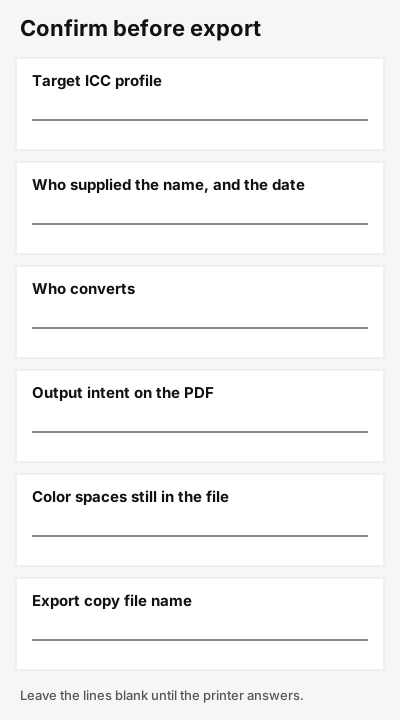
Fill this in before you export the copy. If you do not know the answer, leave the line blank.
| Field | What to write | If blank |
|---|---|---|
| Target ICC profile name | The exact name from the printer’s instruction | Do not convert yet |
| Who supplied it, and the date | The printer, and the date of that instruction | You are guessing the target |
| Who converts | You, on a copy, or the printer | The file can be converted twice |
| Output intent on the exported PDF | The profile name the PDF shows, or “none” | You have not checked the file |
| Color spaces still in the file | The list from Document Colors | An RGB object may still sit in a CMYK file |
| Rendering intent, if you converted | “Document intent,” or the intent you chose | Acrobat’s default is Use Document Intent. Another choice overrides the document intent for that conversion |
| Export copy file name | The name of the duplicate you will send | The conversion can land on the working RGB file |
If you print a desktop proof from InDesign, you can let InDesign determine colors and choose the ICC profile that matches that proofing device. Those options override the document profile for that print job and leave the document itself unchanged. For documents without embedded profiles, InDesign can handle the conversion from the printer settings. Preserving the color numbers, in that same dialog, sends the values straight through with no conversion. InDesign recommends that for a safe CMYK workflow, and says it is not the choice for an RGB document that still needs conversion.
Preserve Black, among Acrobat’s conversion options, keeps black objects drawn in CMYK, RGB, or grayscale from being rebuilt, and it stops RGB black text from turning into rich black when the conversion goes to CMYK. Turn it on when you convert and you want that result. The target profile still has to come from the printer.
Takeaway: Record the profile name, the person who converts, and whether the exported PDF shows that profile as an output intent.
What do you check on the exported copy?
Check the copy you will send. Leave the working RGB file unchanged. Acrobat’s Convert Colors command writes new color values into the document, so convert a duplicate and keep the original.
| Check | Pass when |
|---|---|
| The original RGB file is unchanged | You converted a duplicate, and you did not save the conversion over the working file |
| The file you send is that copy | The file name matches the confirmation block |
| The target ICC name matches the printer’s instruction | The spelling is the same, including the paper or condition in the name |
| The person who converts matches the instruction | You did not convert a file the printer said they would convert, and you did not skip a conversion they asked you to do |
| Output intent | You recorded the output intent profile name, or you recorded that the PDF has none |
| Embedded profile, if you converted and chose Embed | The converted objects carry the conversion profile. Acrobat says Embed tags those objects with the selected profile |
| Color spaces | Document Colors matches the color-space line on the confirmation block |
| Black text, if you converted RGB text | You chose whether Preserve Black was on, so RGB black text was not rebuilt as rich black by accident |
| Desktop proof, if you made one | The proof used the proofing device’s profile, and that proof setting was not saved over the handoff PDF |

A proof on your own printer shows that printer, with the profile you selected for it. InDesign’s help says color management keeps document colors as consistent as possible when they go to different devices. This page makes no promise that your screen and the paper will match.
Takeaway: Send the copy you checked, and keep the unconverted RGB file.
When this does not apply
This sheet is for brand graphics moving from an RGB file toward a print PDF while the output profile is still unsettled. Software choice and what a design quote includes are in the brochure design software and cost guide. Product label content is in the product label design guide.
Spot colors are outside the RGB-versus-CMYK handoff. Acrobat can preserve a spot color, convert it, or map it to another ink, including a CMYK process color when the destination space is CMYK. The values for a named spot come from the printer’s ink setup. This page does not give a Pantone conversion number.
This site does not design, convert, or print files. The tables are a checklist for your own conversation with the printer. More print notes are in the article index.
Method and sources
Conversion behavior is taken from Adobe’s Acrobat Pro help, “Color conversion and ink management,” last updated February 26, 2026, and read on October 11, 2026. The temporary print override, the printer-profile field, and the warning about a second conversion in the printer driver are taken from Adobe’s InDesign help, “Use color management when printing,” last updated June 2, 2026, and read on October 11, 2026. The profile name has to come from the printer for this job. No screen-to-paper pair was measured for this page.
Takeaway: Use the Adobe pages for the tool behavior, and the printer’s instruction for the profile name.
Related reading
- Brochure design software and cost: choose a layout tool and see what a design quote includes.
- Product label design: plan the label’s content before the graphics go to a printer.
- Article index: the rest of the print notes.