Coloring a print ad with the Registration swatch prints that object on every separation, and the rework is a separation check after the PDF is already built. This comparison uses Adobe’s public help pages, not a press test, and it does not name a winner.
Built-in Black, rich black, and Registration are three different swatches. Adobe InDesign’s swatch help, last updated June 2, 2026, defines Black as a built-in 100% process black that overprints by default, and Registration as a swatch that prints an object on every separation from a PostScript printer. Adobe Acrobat’s output-preview help, last updated February 26, 2026, describes rich black as process black mixed with color inks, and says that mix is used for large areas. The extra ink percentages and the press coverage limit stay blank until the printer writes them.
| Item | Value or source | Why it matters |
|---|---|---|
| Built-in Black | InDesign swatch help, updated June 2, 2026: 100% process black, overprints by default, cannot be edited or removed | A black object can start here. The swatch itself is fixed |
| Rich black | Acrobat output preview, updated February 26, 2026: process black (K) mixed with color inks, for increased opacity and a richer color, used for large areas | Other inks in the black are the thing to find on type and on large areas |
| Registration | Same InDesign help: prints objects on every separation from a PostScript printer. Cannot be edited or removed | It is not a recipe. An object using it hits every plate |
| Color added to black | Blank. Illustrator overprint help, updated April 8, 2026, says to consult the print shop for the exact percentages | A four-color black without those percentages is not specified on this page |
| Press coverage limit | Blank. Acrobat says to ask the print service provider for the maximum ink coverage of the press you use | The preview can highlight areas over a percentage only after a number is entered |
What does each swatch print?
Registration prints the object on every separation from a PostScript printer. Built-in Black applies 100% process black and overprints underlying inks by default. Rich black, in Acrobat’s wording, is process black mixed with color inks. None of those three sentences is a CMYK recipe, and Registration is not a stand-in for a fixed four-ink mix.
InDesign locks both swatches: Registration cannot be edited or removed, and Black cannot be edited or removed. Recolor the object. Editing the swatch definition is not available.
Illustrator’s overprint help, last updated April 8, 2026, separates two jobs that people fold into the word “black.” By default, an opaque color on top knocks out the color underneath. Overprinting stops that knockout, so the top ink is transparent relative to the ink below. The degree of transparency depends on the ink, the paper, and the printing method. Overprinting black can prevent gaps between black and colored areas when the press misregisters, because black ink is opaque and is usually printed last. The same page says a 100% black stroke or fill with Overprint may not be opaque enough to hide the inks underneath. The fix it names is a four-color (rich) black instead of 100% black, and the exact percentages come from the print shop.
Takeaway: Change the object’s swatch. Registration and built-in Black cannot be edited into a custom mix.
Which part of the ad uses which black?
Match the object, then stop. Small black type starts from built-in Black. A large area moves to a four-color black only when 100% black shows through, and only with the shop’s percentages. Registration stays on objects that are supposed to hit every plate. A logo from another file is settled by the plates in the PDF, not by the name on the layer.
| Object | Start from | What the opened source supports | Printer’s mix | Coverage limit |
|---|---|---|---|---|
| Small black type | Built-in Black | Acrobat lists unintentional rich black on type as an output problem, and describes rich black as a mix used for large areas. No type size is given | — | — |
| Large black area | Built-in Black, unless 100% black shows through | Illustrator: Overprint on 100% black may let underlying inks show through. A four-color black replaces it only with the shop’s percentages | — | — |
| Object that must print on every plate | Registration | InDesign: the swatch prints on every separation from a PostScript printer | — | — |
| Logo placed from another file | Whichever plates the PDF shows | No separate logo rule in these sources. Output Preview shows the plates | — | — |
A dash in the last two columns means the cell stays empty. This page does not fill it.
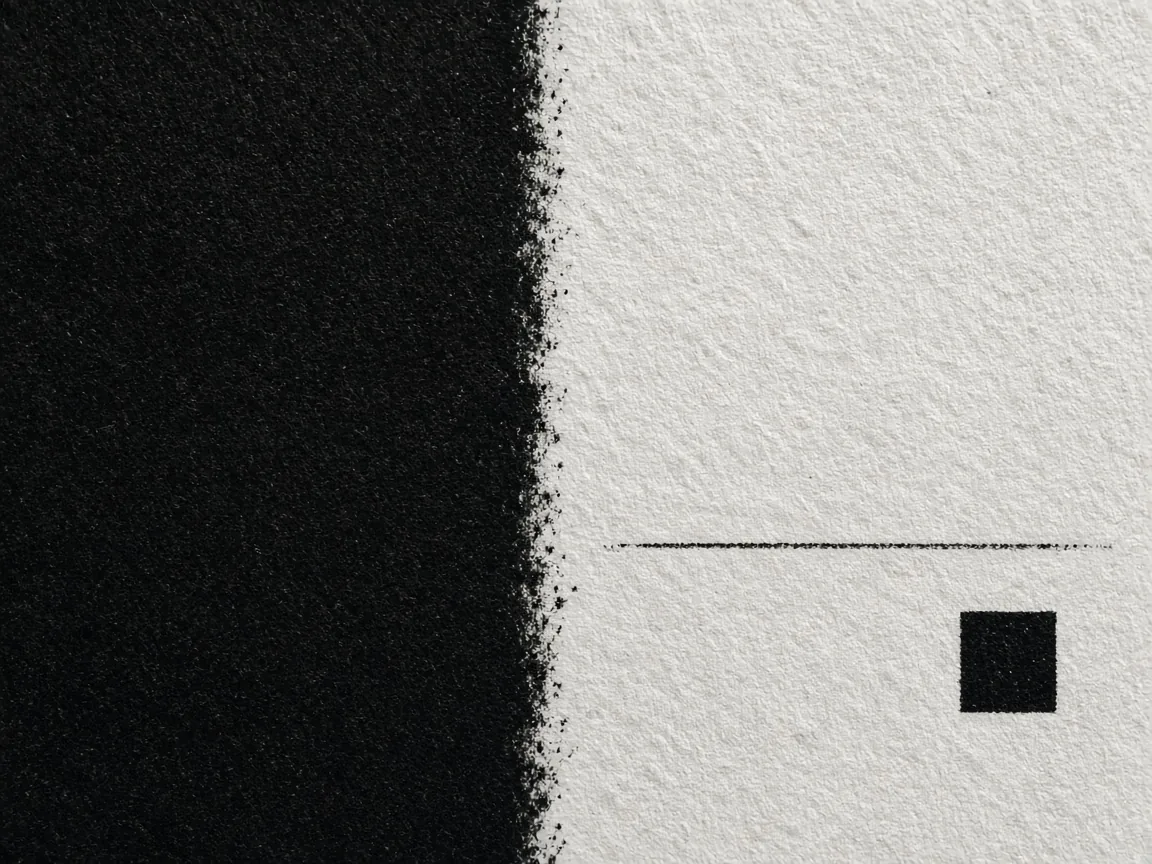
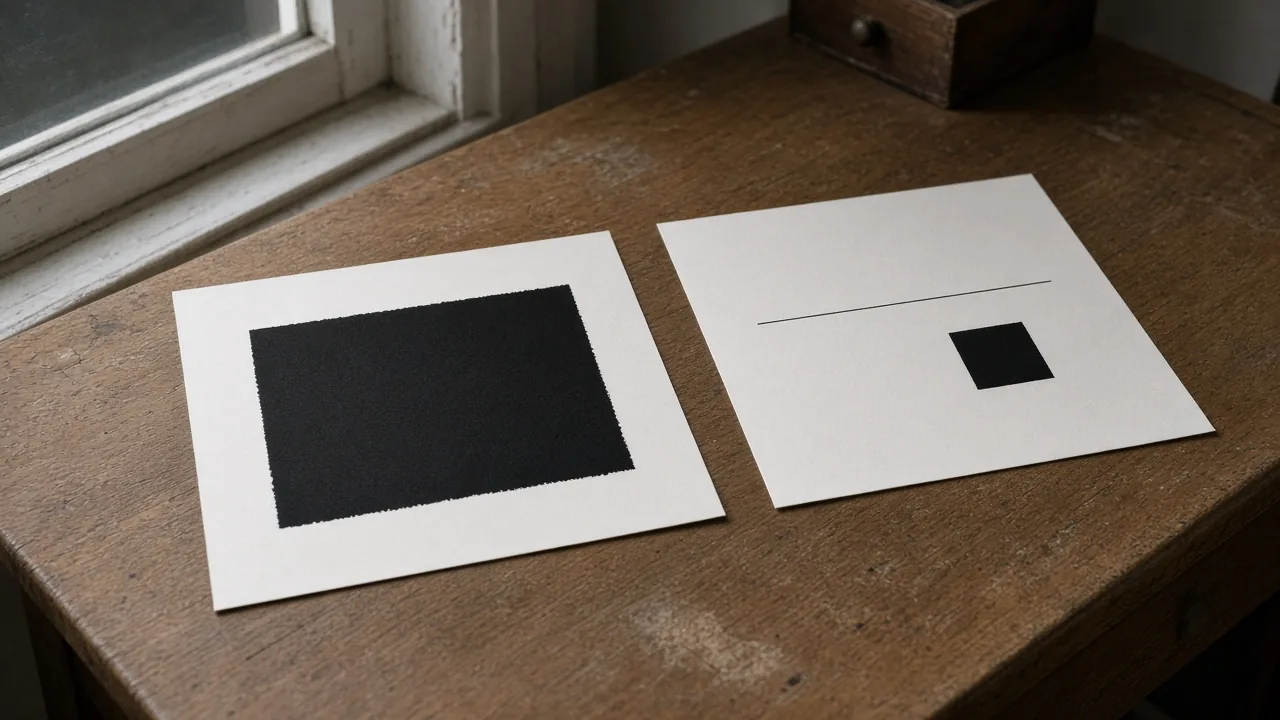
Close view of a large black printed field beside a thin black line and a small black square on white paper.
The picture shows two amounts of black ink on one sheet. It does not show which swatch produced them, and it is not a measurement.
Acrobat’s rich-black warning is the check for type. In Output Preview, Color Warnings, the Rich Black option marks process black mixed with color inks. You type a Start Cutoff, the minimum percentage of black that counts. For that warning, rich black means black at or above the cutoff plus any nonzero cyan, magenta, or yellow. Adobe does not publish a cutoff on that page. If the printer has not given you one, leave the cutoff blank and do not invent a point size either.
A logo that still appears when you view every separation on its own is behaving like Registration: the object is on every plate. A logo that remains only on the black plate matches 100% process black. A logo that also appears on cyan, magenta, or yellow is a mix, and the warning above can flag it once you have a cutoff. If the logo was not supposed to hit every plate, recolor the object. The replacement percentages are still the printer’s line, not a guess.
Takeaway: Use Registration only for an object that should appear on every plate. For type and logos, record the plates before you add other inks.
What do you write down from the PDF?
Open the exported PDF in Acrobat Pro and read the plates. The path in the help page, last updated February 26, 2026, is All tools, Use print production, Output preview. Choose Separations from the Preview menu. Select the box beside a separation to show it, and clear the box to hide it. Process Plates and Spot Plates show those groups at once. A single plate is drawn as a black plate, so a light ink such as yellow is easier to see.
| Record | Where you look | Write this | Leave blank when |
|---|---|---|---|
| Plates the object hits | Separations, one plate at a time | The plate names that still show the object | You have not opened the preview |
| Black plate only | Every other plate hidden | Yes or no | The preview is closed |
| Every separation | The object still shows on each plate viewed alone | Yes or no | You viewed only the composite |
| Rich-black warning | Color Warnings, Rich Black | On or off, plus the Start Cutoff you typed | The printer has not given a cutoff |
| Total area coverage | Separations, Total Area Coverage | The printer’s maximum, and whether the object is highlighted | The printer has not named a maximum |
| Sample used for the plate percentages | Sample Size: Point Sample, 3 by 3 Average, or 5 by 5 Average | Which sample you used. It changes the plate percentages, not the coverage warning | — |
| Proof still required | Acrobat says the on-screen preview does not show trapping, emulsion, printer marks, halftone screens, or resolution | “Integral or overlay proof” | — |
Too much ink can saturate the paper, cause drying problems, or change the expected color. Total Area Coverage is the sum of all inks. Acrobat’s own arithmetic example is 280, meaning 280% coverage, which could be 60C, 60M, 60Y, and 100K. That sentence explains the sum. It is not a mix for this ad. Enter the maximum the printer gave you. The highlight then marks areas over that percentage. Hovering shows each ink’s percentage beside its name. Until the printer names a maximum, leave the coverage field blank.
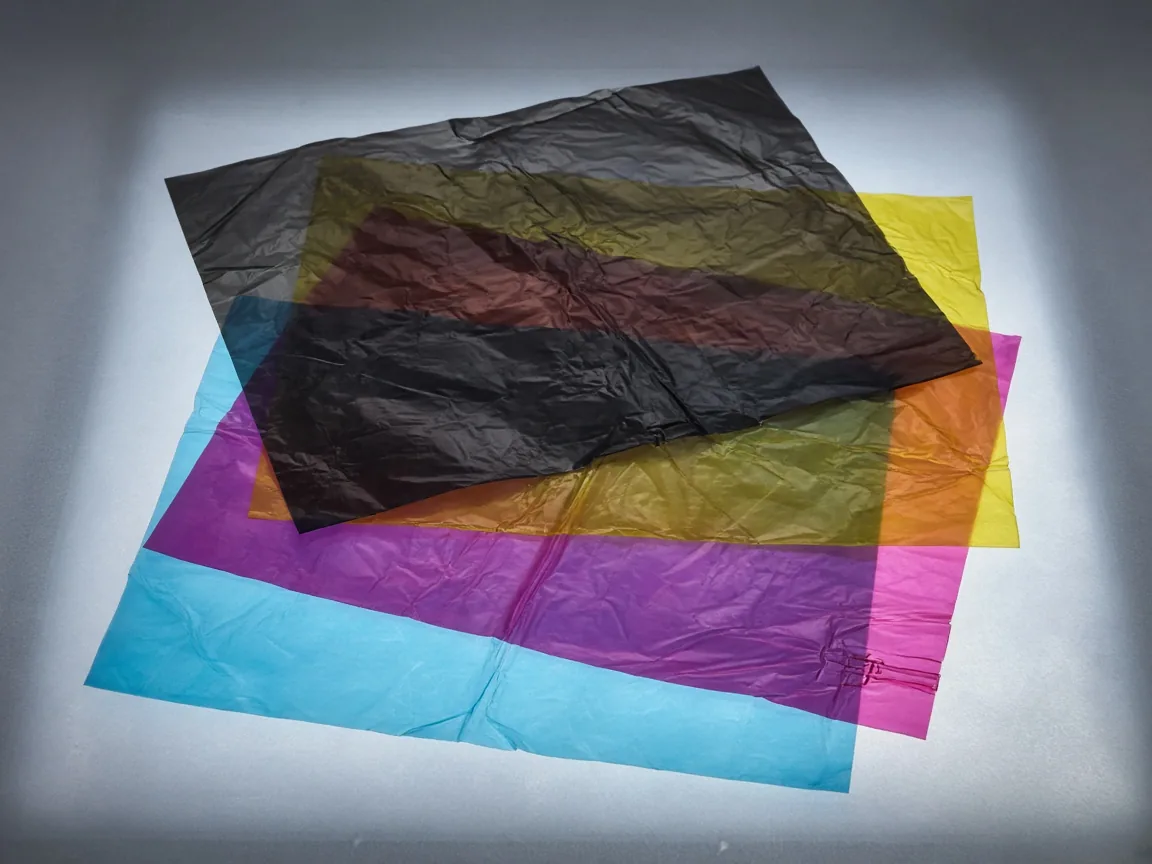
Four translucent sheets, cyan, magenta, yellow, and black, stacked so the overlaps look darker.
The sheets are a picture of overlapping color. They are not the separations of a named ad, and they do not show a coverage percentage.
Takeaway: Record plate names from the PDF. Type a coverage limit only after the printer supplies the number.
What stays blank until the printer fills it?
The mix and the coverage limit stay blank. Illustrator tells you to consult the print shop for the percentages of color added to black. Acrobat tells you to ask the provider for the maximum coverage of the press you use. A number copied from another job describes that job.
| Field | Who can fill it | This page |
|---|---|---|
| Cyan, magenta, and yellow added to black | The print shop, for this paper and this press | — |
| Start Cutoff for the rich-black warning | The printer, if they want a cutoff | — |
| Maximum total area coverage | The printer, for the press you use | — |
| Whether 100% black is opaque enough on this paper | A proof. Illustrator says the show-through depends on the ink, the paper, and the printing method | — |
Four ink-covered rollers, cyan, magenta, yellow, and black, on a steel table.
The rollers show four inks. They do not show a formula.
Overprint Black in Illustrator’s Print dialog, when you make separations, affects objects that carry black through the K channel. It does not affect objects that only look black because of transparency or a graphic style. After you set overprinting, Illustrator’s Overprint Preview is an approximation. The same help page says to check separated artwork with an integral proof, where each separation is in register on one sheet, or an overlay proof, where the separations sit on separate sheets stacked together. Acrobat’s on-screen separation preview has the same limit: trapping, emulsion, printer marks, halftone screens, and resolution are checked with the print provider.
Takeaway: An empty mix cell is complete. Fill it only from the printer’s instruction for this job.
When this does not apply
This page sorts three swatches on a print ad and records the PDF plates. It does not convert RGB files, name an ICC profile, or decide who performs that conversion. Those steps are on the CMYK and RGB print handoff sheet.
Spot-color recipes, a coverage limit for every paper, and a type-size rule are outside the sources read for this page. Acrobat notes that some spot colors can be converted to process colors in Ink Manager as one way to adjust coverage. The spot values themselves are not listed here.
This site does not design, separate, or print files. The tables are a record for the conversation with the printer. More print notes are in the article index.
Method and sources
Swatch definitions are from Adobe InDesign help, “Swatch types,” last updated June 2, 2026. Separation preview, the rich-black warning, the 280% arithmetic example, and the coverage warning are from Adobe Acrobat Pro help, “Previewing output,” last updated February 26, 2026. Overprint, the note that 100% black may show through, and the instruction to get percentages from the print shop are from Adobe Illustrator help, “Overprint,” last updated April 8, 2026. The copies were read from the cache saved on October 11, 2026. No press sheet was measured for this page. Where a source does not give a percentage, the table keeps a dash.
Related reading
- CMYK and RGB print handoff: decide who converts the file and which profile the PDF should carry.
- Article index: the rest of the print notes.