For magazine and newspaper print ad design, trim is the finished boundary, bleed carries edge artwork beyond it, and the live area keeps essential information safely inward. A spread also needs the publication’s gutter clearance so text and important image details remain away from the centre join.
Start with the specification for the booked publication, issue and ad unit. The examples below show how to read magazine ad bleed and trim specs, distinguish newspaper non-bleed units, and check the final file before submission.
Bleed, trim and live area: which boundary does what?
Set each boundary separately. Increasing bleed adds artwork outside the cut; protecting a headline requires moving it inside the live area.
| Boundary | What it controls | What to check in the ad |
|---|---|---|
| Bleed | Extra artwork beyond the intended cut | Background colours and edge-to-edge images extend through the specified bleed |
| Trim | Finished size after cutting | The document’s trim dimensions match the booked format |
| Live or safe area | Inward space for essential content | Headlines, logos, contact details and required small print stay inside it |
| Gutter clearance | Content placement beside the centre join | Essential details clear the publisher’s centre exclusion on both facing pages |
News Corp Australia’s Print Specification Document (August 2024, p. 3) distinguishes the trim, safe type area and bleed in this way. The distinction matters because a bleed setting and the artwork itself are separate: a background ending at trim still leaves empty space beyond the cut, even if the document has a bleed allowance.
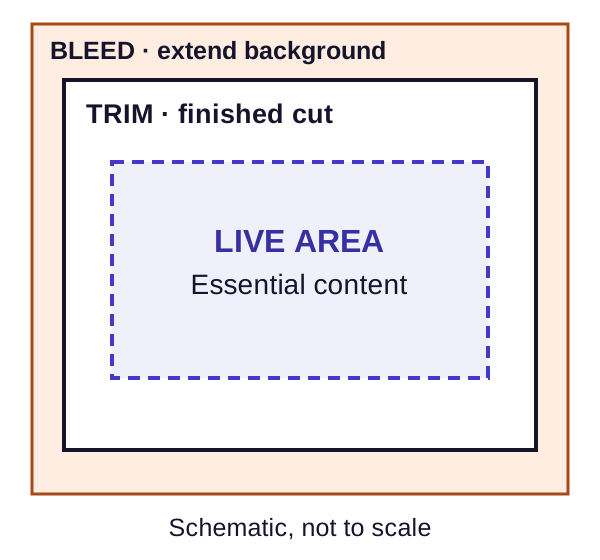
A print ad live area safety margin belongs to the publication’s layout instructions. If the specification gives a safe rectangle, use that rectangle and its placement guide. If it gives a minimum setback from an edge, measure inward from that edge. Keep those instructions with the template throughout design and export.
Magazine specifications: read the three sizes together
Televisual’s Print Advertising Specifications, marked “Correct as of Summer 2026,” gives a full-page trim of 225 × 270 mm, an overall bleed size of 231 × 276 mm, and a safe area of 195 × 240 mm. Its stated bleed is 3 mm on every side.
The table uses width × height, in millimetres, for that full-page placement.
| Specification | Width × height | Layout action |
|---|---|---|
| Trim | 225 × 270 mm | Set the finished page to this size |
| Including bleed | 231 × 276 mm | Extend edge artwork through the extra area |
| Safe area | 195 × 240 mm | Keep text within the publisher’s safe-area guide |
The relationship is:
Bleed width = trim width + left bleed + right bleed
Bleed height = trim height + top bleed + bottom bleed
For Televisual’s full page, (225 + 3 + 3) × (270 + 3 + 3) = 231 × 276 mm. This checks the supplied outer dimensions against the finished size. When a specification already lists the size including bleed, that allowance is already included.
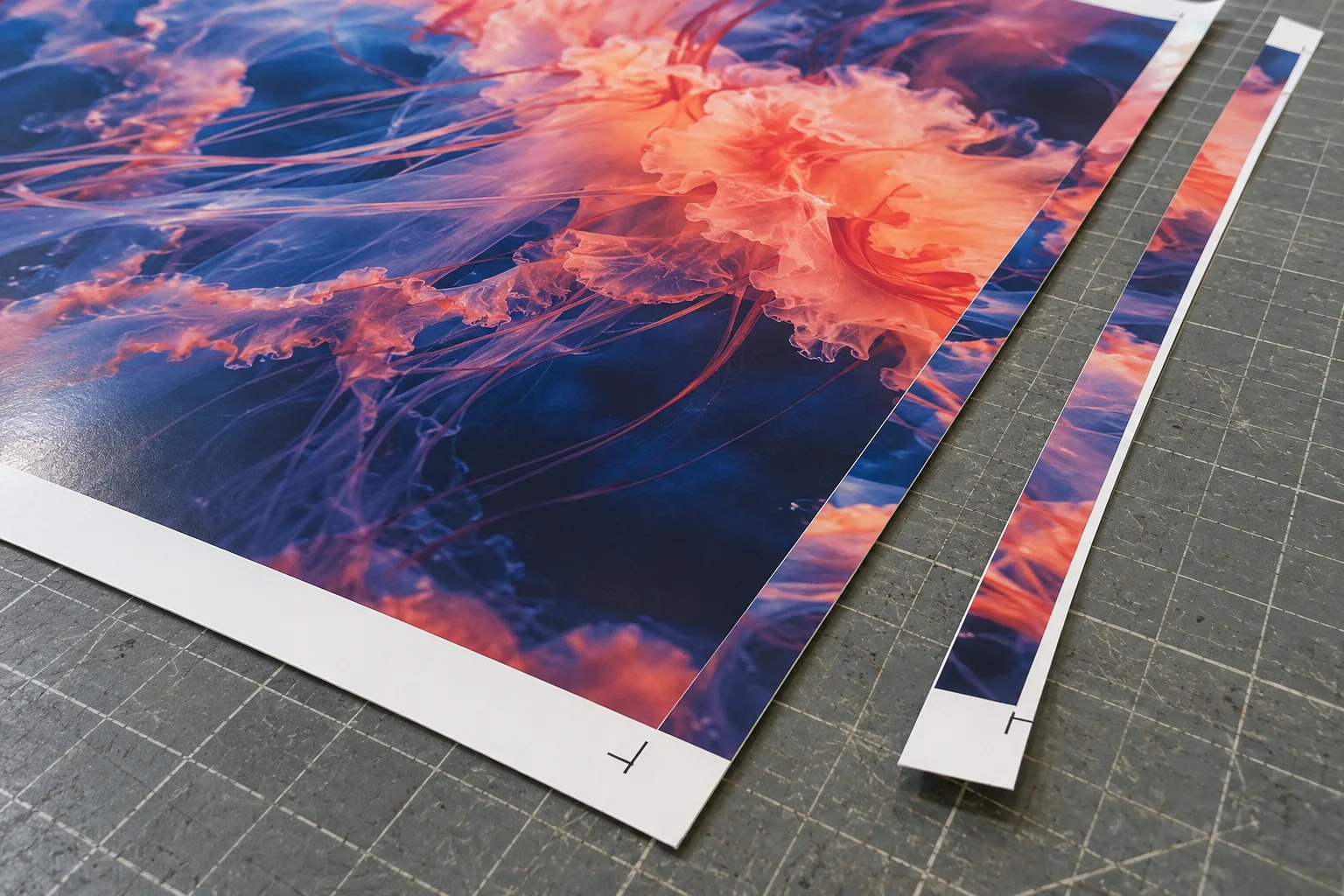
Apply the same dimension-reading method to each new booking, then enter that publication’s values. For another printed format, the business card trim and bleed guide provides separate printer-specific size examples.
Gutter safety: protect each side of the spread
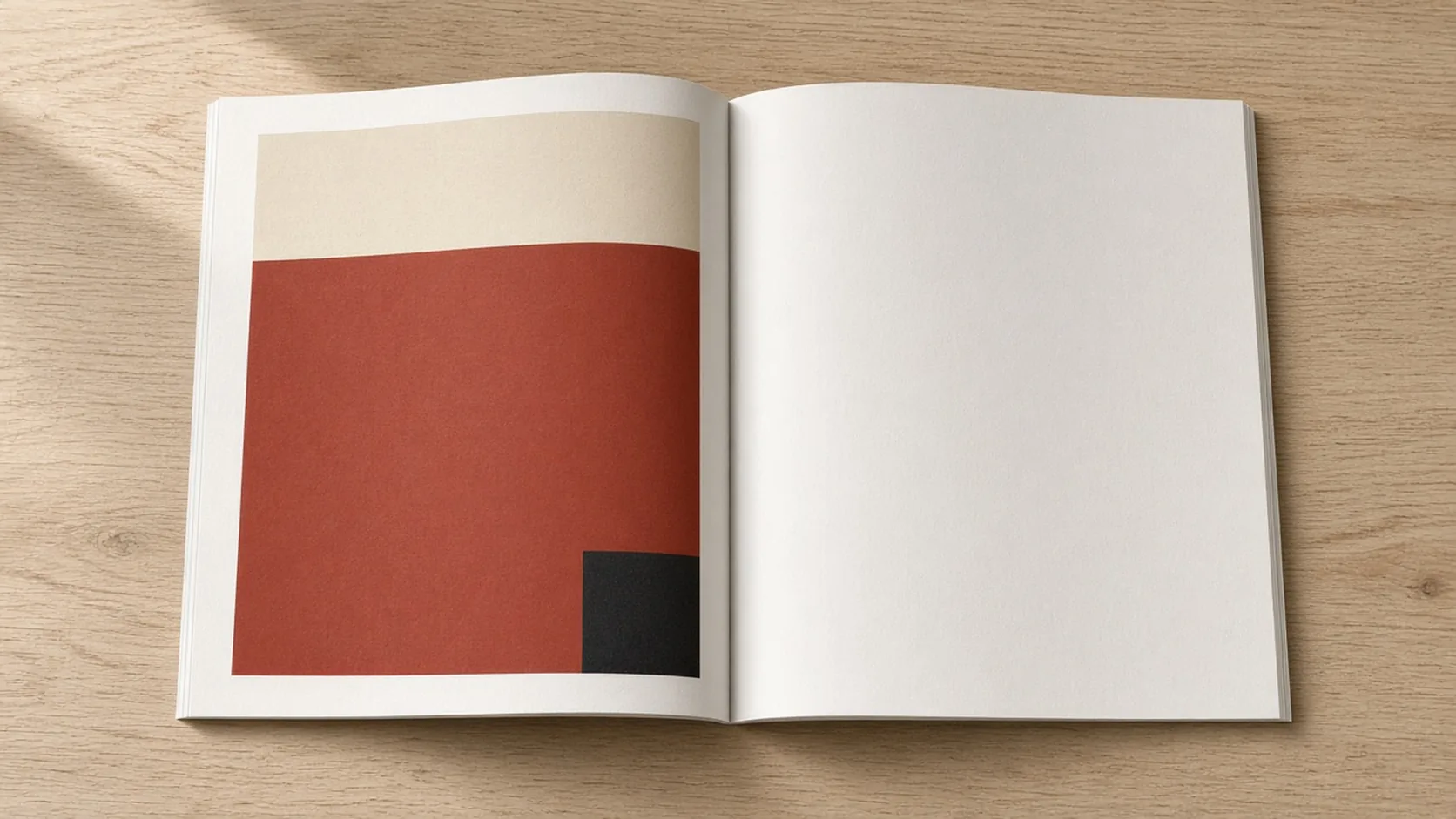
Treat the centre join as its own placement constraint. In a bound magazine, the page surface curves toward the spine, so a headline, logo or important face spanning the join can become difficult to read. Keep each essential element within the appropriate page’s protected area.
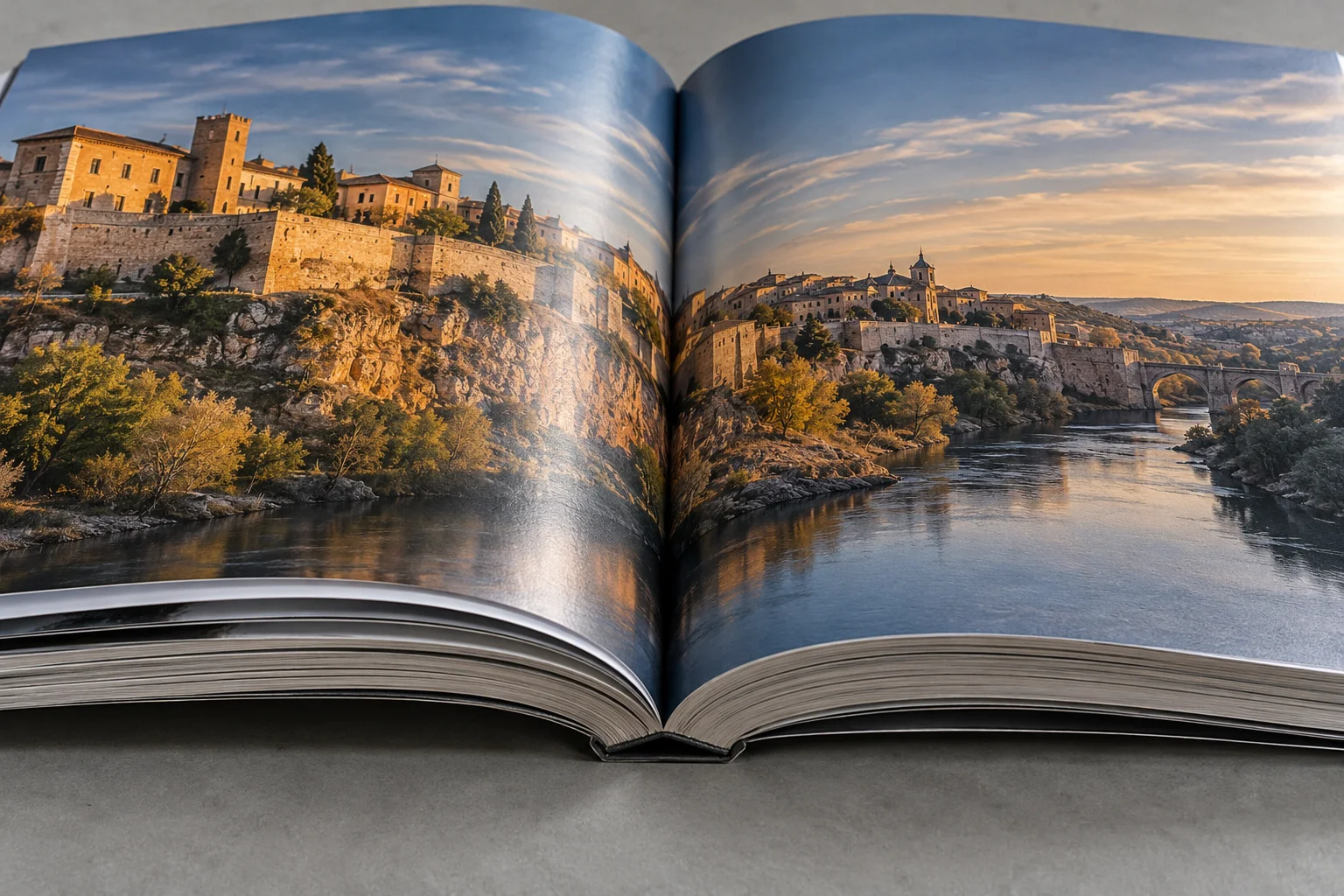
The following requirements illustrate why centre safety needs its own check. Keep each requirement attached to the named placement and document edition.
| Publication and specification | Stated protection | How to apply it |
|---|---|---|
| Televisual, Summer 2026, double-page format | Safe area of 195 × 240 mm on each page | Lay out two facing pages with separate safe areas; supply them as two separate pages as instructed |
| Television Academy, updated July 22, 2016, perfect-bound magazine | Live elements at least 0.25 in inside final trim | Apply the trim setback to essential content |
| Television Academy, same specification, special cover-to-text handling | Live matter 0.375 in from the centre gutter | Apply this centre setback to the specified cover-to-text placement |
The Academy’s special centre requirement is a placement instruction for that cover-to-text situation. Use the specified distance from the centre gutter directly; retain the separate trim-safety check at the other boundaries.
A practical spread check is to view the two pages together, then inspect each page on its own. Look for words broken at the join, a logo divided across pages, or contact details pulled into the centre. Let expendable background imagery cross the join while essential content remains readable within each page’s safe area. For headline and visual arrangement before these production checks, see the print advertising examples.
Newspaper ads: use the booked non-bleed unit
For a newspaper unit labelled non-bleed, build to the supplied ad dimensions. Press advertising design often involves an ad rectangle within a larger page, so the booking’s width and depth determine the file size.
News Corp Australia’s Print Specification Document, August 2024, broadsheet table on p. 7, lists the following non-bleed units. Dimensions are width × depth, in millimetres.
| Non-bleed ad unit | Supplied ad dimensions | Production check |
|---|---|---|
| M17×8 — full page | 372 × 540 mm | Match the full-page unit on the booking |
| M9×8 — half-page horizontal | 372 × 284 mm | Use the specified depth for this unit |
| M17×16 — double-page spread | 774 × 540 mm | Keep 10 mm free of text on each side of the centre |
These dimensions describe the supplied advertisement. Use the listed spread width directly: the booked spread has its own geometry. The 10 mm per-side text exclusion comes from the broadsheet spread instruction on that page.
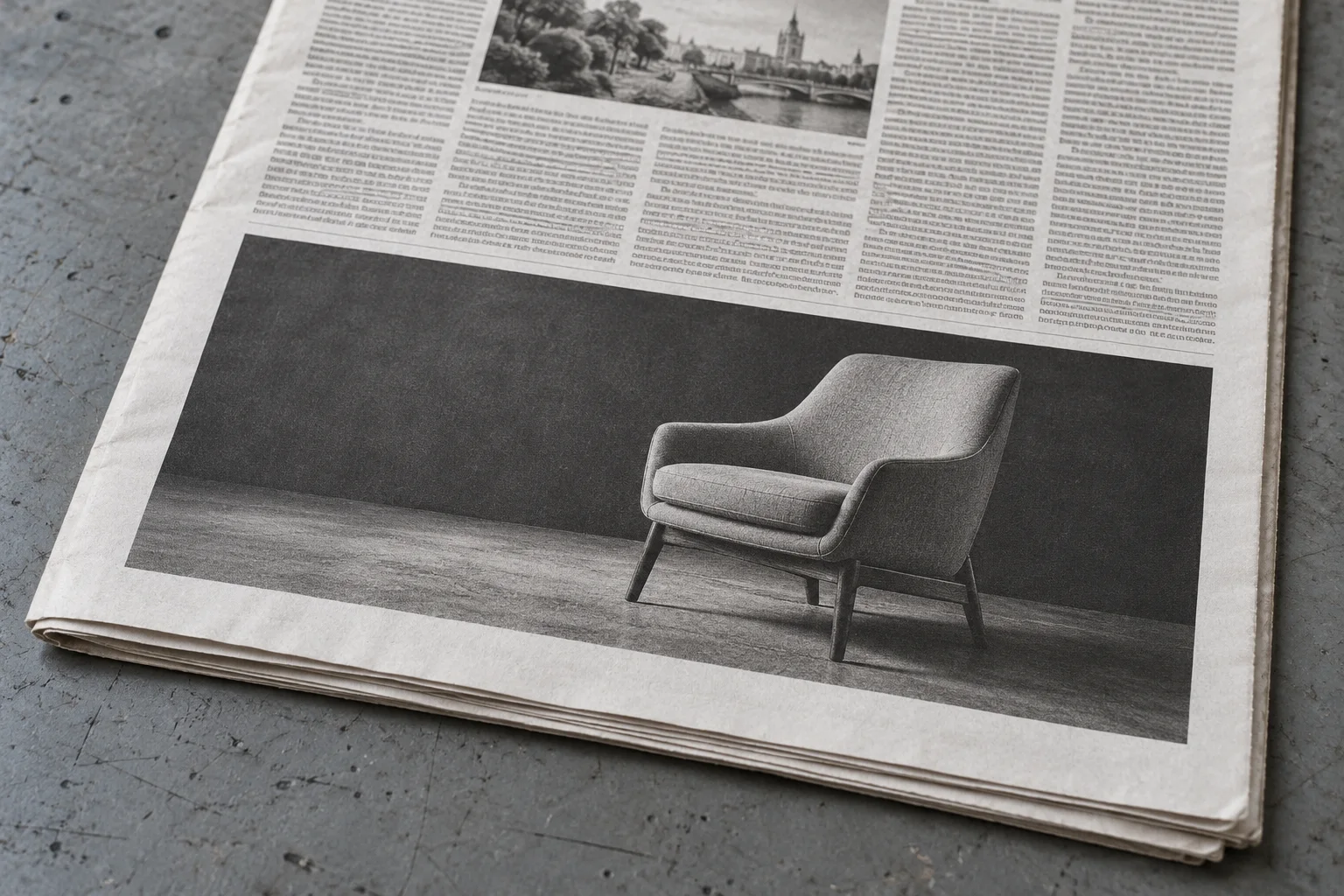
For a new placement, obtain the specification attached to that issue and unit. A magazine-style full-bleed layout and a newspaper non-bleed unit require different document setups; choose the setup before resizing the creative.
Correct the problem at the right boundary
Inspect edge coverage, content position and centre clearance independently. Each points to a different correction.
| What you find | Boundary to check | Correction before submission |
|---|---|---|
| Background stops at the intended cut | Bleed | Extend the actual image or colour through the specified bleed |
| Headline, logo or small print sits close to the cut | Live area | Move essential content inside the publisher’s safety guide |
| A word or important image detail crosses the binding | Gutter | Reposition it within one page’s protected area |
| File dimensions exceed a non-bleed booking | Ad-unit boundary | Rebuild or resize to the booked unit’s supplied dimensions |
| Unwanted marks appear outside the ad | Delivery instructions | Apply the publication’s marks requirement and inspect the resulting file |
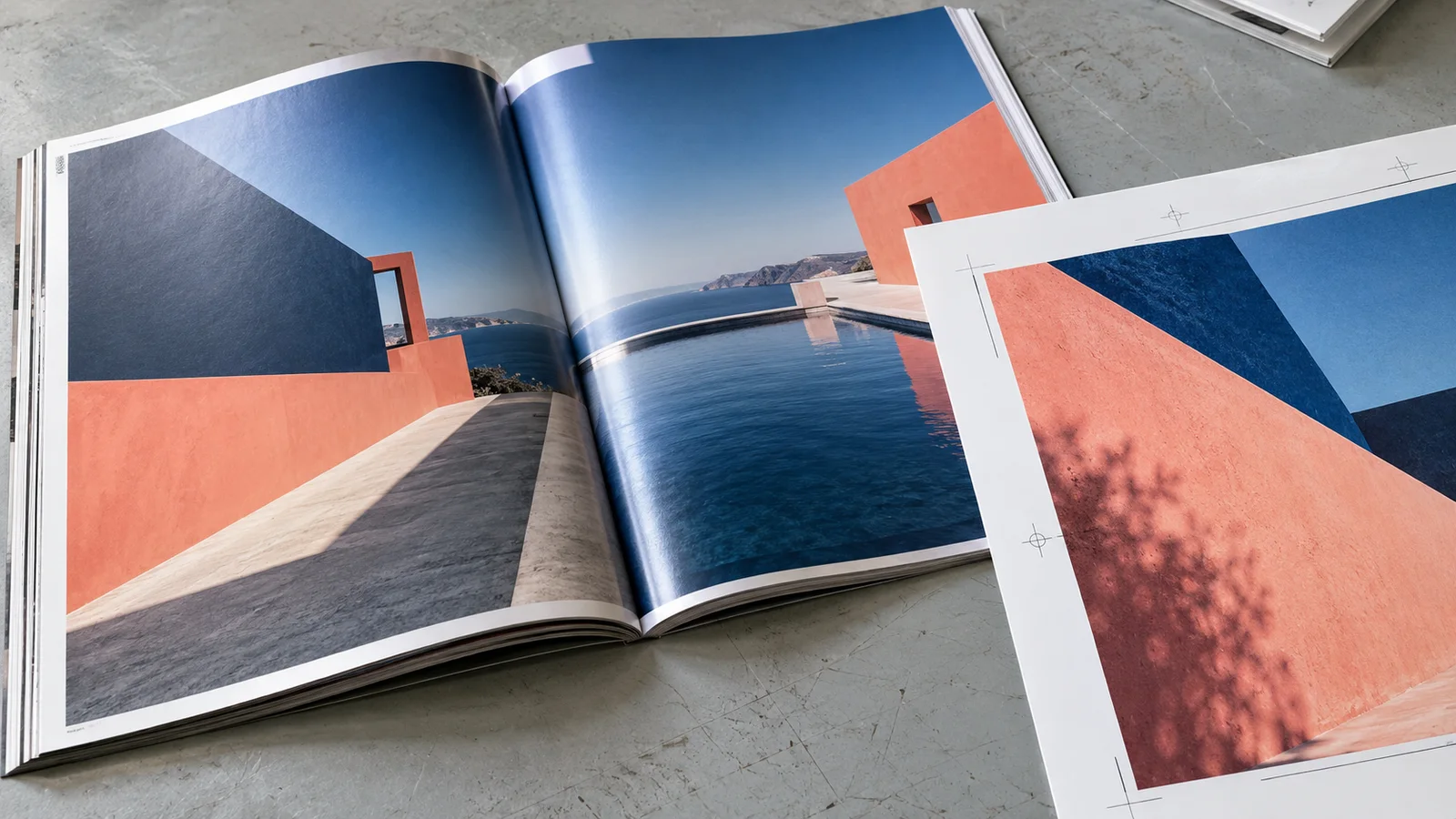
Crop marks also follow the publication. News Corp’s August 2024 broadsheet instructions request removal of crop and printer marks. The Television Academy’s specification, updated July 22, 2016, requires crop marks offset by 24 points. Adobe’s Set printer’s marks documentation describes marks and bleed as separate controls in InDesign’s Print dialog. Set the controls for the required output, then inspect the file you will actually deliver.
Print-ad specification checklist before handoff
Keep the booking specification beside the exported file and complete these checks:
- Identify the placement. Match publication, issue, ad unit, orientation and specification edition; note any cover-to-text or other special position.
- Check finished and supplied sizes. Distinguish trim from size including bleed. For non-bleed units, match the supplied ad width and depth.
- Inspect every bleeding edge. Confirm that the image or background fills the entire required allowance.
- Check essential content. Keep headlines, logos, contact details and small print inside the specified live area.
- Inspect the centre. Apply the spread’s gutter requirements to both facing pages; keep critical details clear of the join.
- Confirm file arrangement. Deliver separate pages or a spread according to the publication’s instructions.
- Check the final export. Verify dimensions, visible artwork, page order and required or removed marks in the delivered copy.
When the recipient requests editable source files, continue with the InDesign links and fonts handoff checklist. Browse the print-design blog for related layout and file-preparation guides.
Specification references
- Televisual — Print Advertising Specifications, marked correct as of Summer 2026: full-page trim, bleed and safe dimensions; separate facing-page instructions.
- Television Academy — Magazine Ad Specifications & Requirements, published August 13, 2013, updated July 22, 2016: perfect binding, trim safety, special cover-to-text gutter handling and crop marks.
- News Corp Australia — Print Specification Document, August 2024 edition: boundary definitions on p. 3; non-bleed broadsheet units, spread text clearance and mark removal on p. 7.
- Adobe — Set printer’s marks, revised June 2, 2026: InDesign Print-dialog controls for marks and bleed.