Uploading trim pixels when the printer requested the full canvas can cost a reprint, another proof, and a delayed order. For MOO’s standard business card, the full canvas is 1098 × 648 pixels at 300 PPI; the finished trim is 1050 × 600 pixels. Choose the rectangle before calculating business card sizes in pixels, so the background reaches beyond the intended cut.
Which rectangle does the size name?
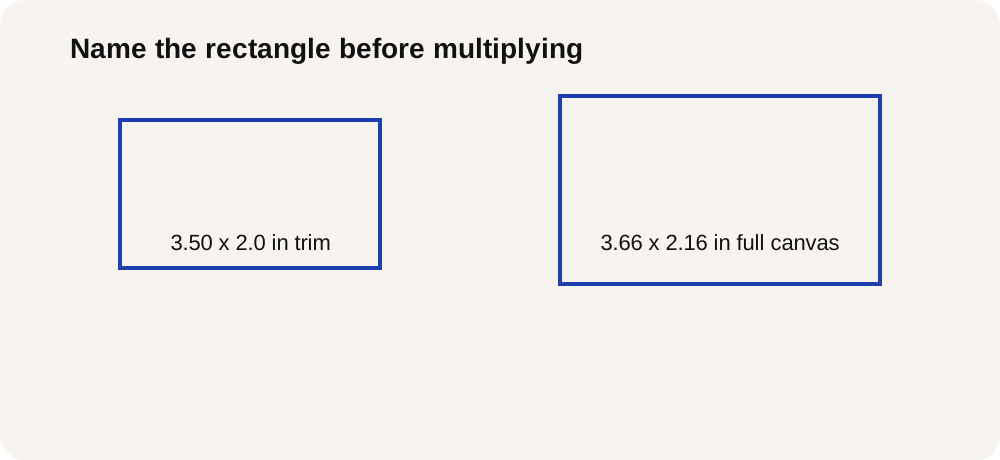
MOO’s standard-card design guidelines distinguish a finished trim of 3.50 × 2.0 inches from a full-bleed canvas of 3.66 × 2.16 inches. Trim names the intended cut boundary. The larger canvas provides background beyond that boundary, helping prevent white edges when the card is cut.
Use the dimensions for the product you are ordering. These MOO measurements do not establish another printer’s upload size. For help choosing the physical format, use the business card size and bleed guide before converting it to pixels.
Rule of thumb: for this MOO full-bleed job, a canvas that stops at 3.50 × 2.0 inches is too small; start with the complete 3.66 × 2.16 inches before multiplying by PPI. Do not add bleed again: the full-canvas dimensions already include it. Keep text and logos within the provider’s safe area, rather than treating the trim boundary as a safe placement line.
The formula and a worked example
Adobe explains the relationship between physical size, pixel count, and image resolution. Applied separately to the width and height, its formula is:
canvas pixels = physical inches × pixels per inch
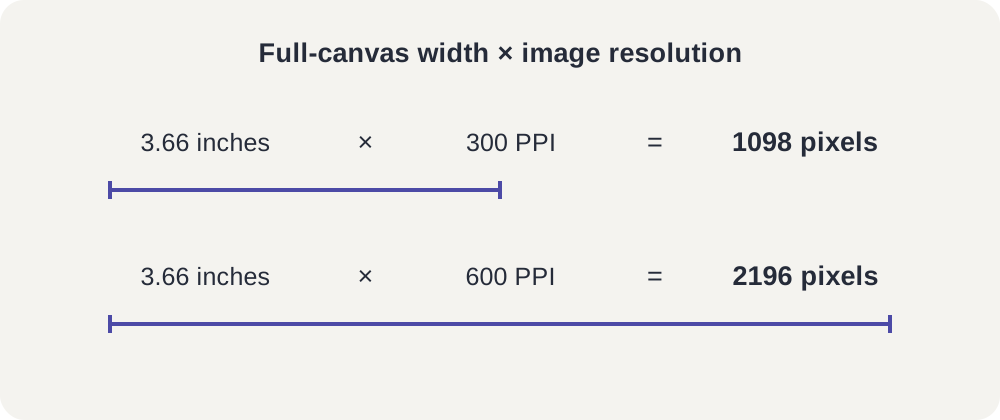
For the MOO full canvas at 300 PPI:
- Width: 3.66 inches × 300 PPI = 1098 pixels.
- Height: 2.16 inches × 300 PPI = 648 pixels.
The result is 1098 × 648 pixels. At 600 PPI, the same physical rectangle becomes 2196 × 1296 pixels. The extra pixels change the density, while the intended physical canvas stays the same size.
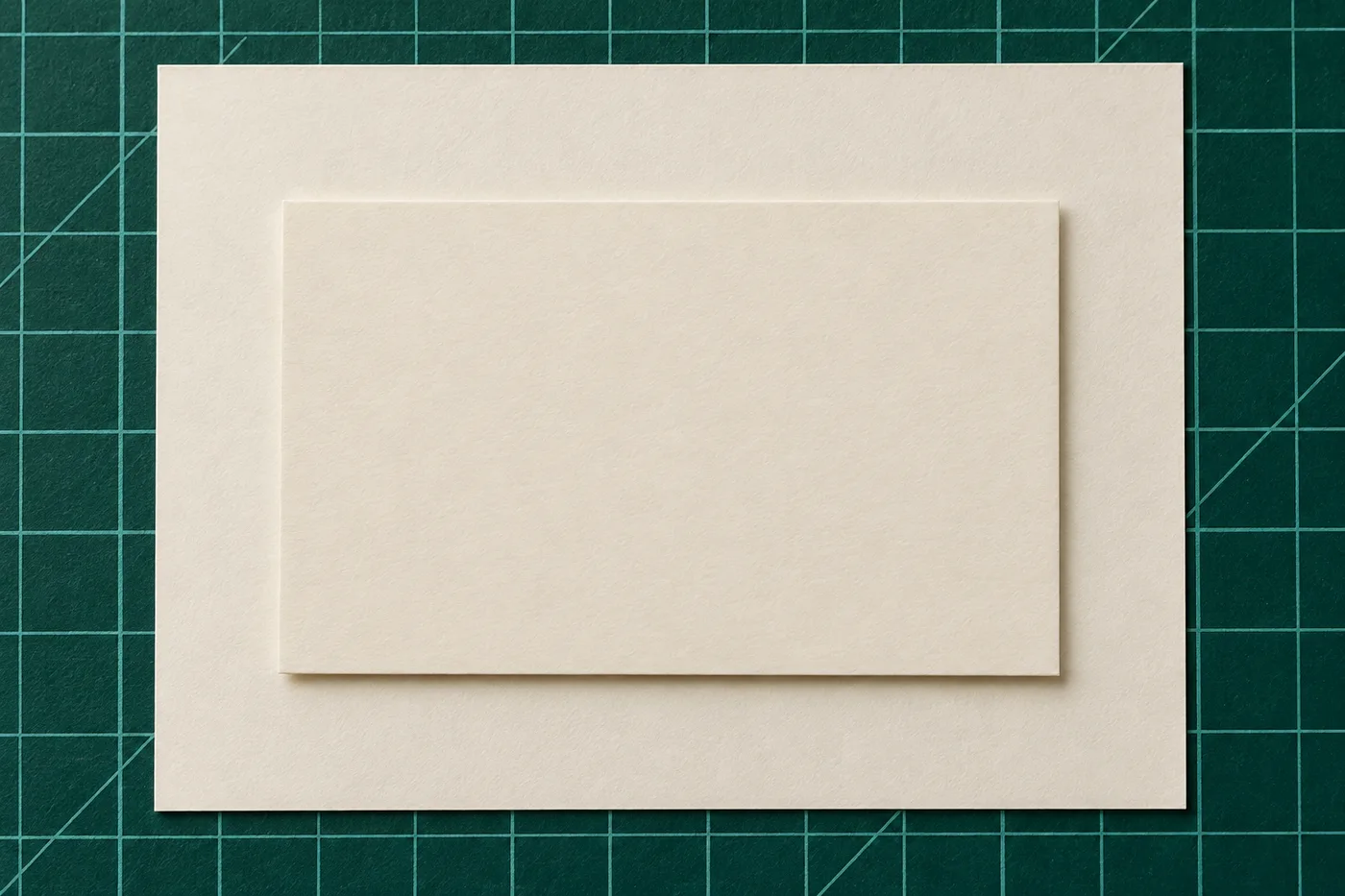
Business card pixel dimensions at 300 and 600 PPI
Read across the row for the rectangle your printer names. Both calculations use MOO’s inch dimensions directly.
| Rectangle | Physical size, width × height | At 300 PPI, pixels | At 600 PPI, pixels | Dominant Failure Mode | Prevention |
|---|---|---|---|---|---|
| Finished trim | 3.50 × 2.0 inches | 1050 × 600 | 2100 × 1200 | Uploading trim pixels leaves no background extension for a full-bleed job. | Use the full-canvas row when the upload brief includes bleed. |
| Full canvas, including bleed | 3.66 × 2.16 inches | 1098 × 648 | 2196 × 1296 | Adding bleed again produces a canvas larger than the stated upload area. | Multiply the supplied full dimensions directly, then check the exported pixel count. |
MOO’s product FAQ also gives 1098 × 648 pixels as its ideal raster upload size at the density described here as 300 PPI. The 600-PPI column is a second calculation density, not a requirement for every business card.
Image resolution versus printer dots
PPI describes image pixels per printed inch. DPI describes printer dots per inch. A brief may call an image setting “DPI,” but the canvas calculation uses image pixels. Adobe treats printer resolution separately from image resolution; a device’s dot specification does not set your artwork’s pixel dimensions.
Adobe identifies 300 PPI as typical for professional printing. Follow the provider’s image-resolution request for the particular job. Adobe’s crop examples include 600 PPI, but that example does not make it a universal card specification.
Changing a resolution field while keeping the pixel count fixed does not create detail. It changes how those pixels map to physical size. Resampling can add pixels, but it cannot recover detail absent from the source. Check the exported pixel dimensions alongside the intended physical dimensions, rather than accepting the resolution label alone.
The blank canvas files
Choose the blank raster matching the requested image density:
- Blank MOO full canvas at 300 PPI — 1098 × 648 pixels.
- Blank MOO full canvas at 600 PPI — 2196 × 1296 pixels.
These are blank rasters for the MOO full canvas, not a finished design or a universal template. Their outer dimensions include bleed; they do not replace the provider’s trim and safe-area guides. Extend the background across the canvas and position important content using the current product guidelines. Before upload, confirm the actual exported pixel count, physical size, image density, and accepted file format against the printer’s brief.
Sources
- MOO standard business card specifications: product-specific trim and bleed dimensions, plus its raster-upload recommendation.
- Adobe: image size, resolution, and resampling: the conversion relationship, typical professional-print density, and limits of resampling.
- Adobe: crop tool effects on image dimensions: examples using both calculation densities.
- Adobe: printer resolution: the distinction between device dots and image pixels.