Sending a print PDF where a reversed-out white logo vanishes on press plates causes production delays and rework. Before clearing overprint on every white path or rasterizing the logo, check whether the object is process white (0% CMYK) or a Spot White ink plate, inspect its child paths and layer print settings in Illustrator, and verify the exported PDF in Acrobat Pro Output Preview. Use the boundary table, diagnostic log, and handoff checklist below to fix unintentional process-white overprint or hand prepress a verifiable file package.
Why do white objects disappear when exporting or previewing a print file? In standard CMYK printing, white is unprinted substrate achieved by knocking out the inks underneath. According to Adobe Illustrator’s White Overprint documentation (updated April 8, 2026), if a process-white object inherits Overprint Fill or Overprint Stroke, it stops knocking out the background and disappears when you enable View > Overprint Preview or print separations. While Illustrator’s Discard White Overprint option is switched on by default in Document Setup and Print dialogs to strip white overprint when saving to PDF or EPS, it leaves the source artwork unchanged and does not affect Spot White objects. If overprint is already off, check for non-printing layers or nested group attributes.
| Diagnostic item | Where to check | Why it changes your next step |
|---|---|---|
Overprint Fill / Overprint Stroke on child paths |
Illustrator: Window > Attributes with individual paths selected |
Unintentional overprint on 0% CMYK white prevents knockout and makes the logo vanish in separation preview |
View > Overprint Preview |
Illustrator workspace menu | Shows whether the source artwork still carries white overprint even if PDF output stripped it |
Discard White Overprint |
Illustrator: File > Document Setup and File > Print |
Enabled by default for print, EPS, and PDF output on process white, but leaves source artwork and Spot White untouched |
Swatch type (Process Color vs Spot Color) |
Illustrator: Window > Swatches |
Process white must knock out; a Spot White ink plate on clear film, foil, or dark stock often requires overprinting |
Layer Print and Template options |
Illustrator: Window > Layers > Options for "<Layer name>" |
Unchecking Print keeps the white logo visible on the artboard (Show) while omitting it from print output |
| PDF separations and object attributes | Acrobat Pro: All tools > Use print production > Output preview |
Confirms whether the final PDF knocks out underlying CMYK plates or carries an unresolved overprint warning |
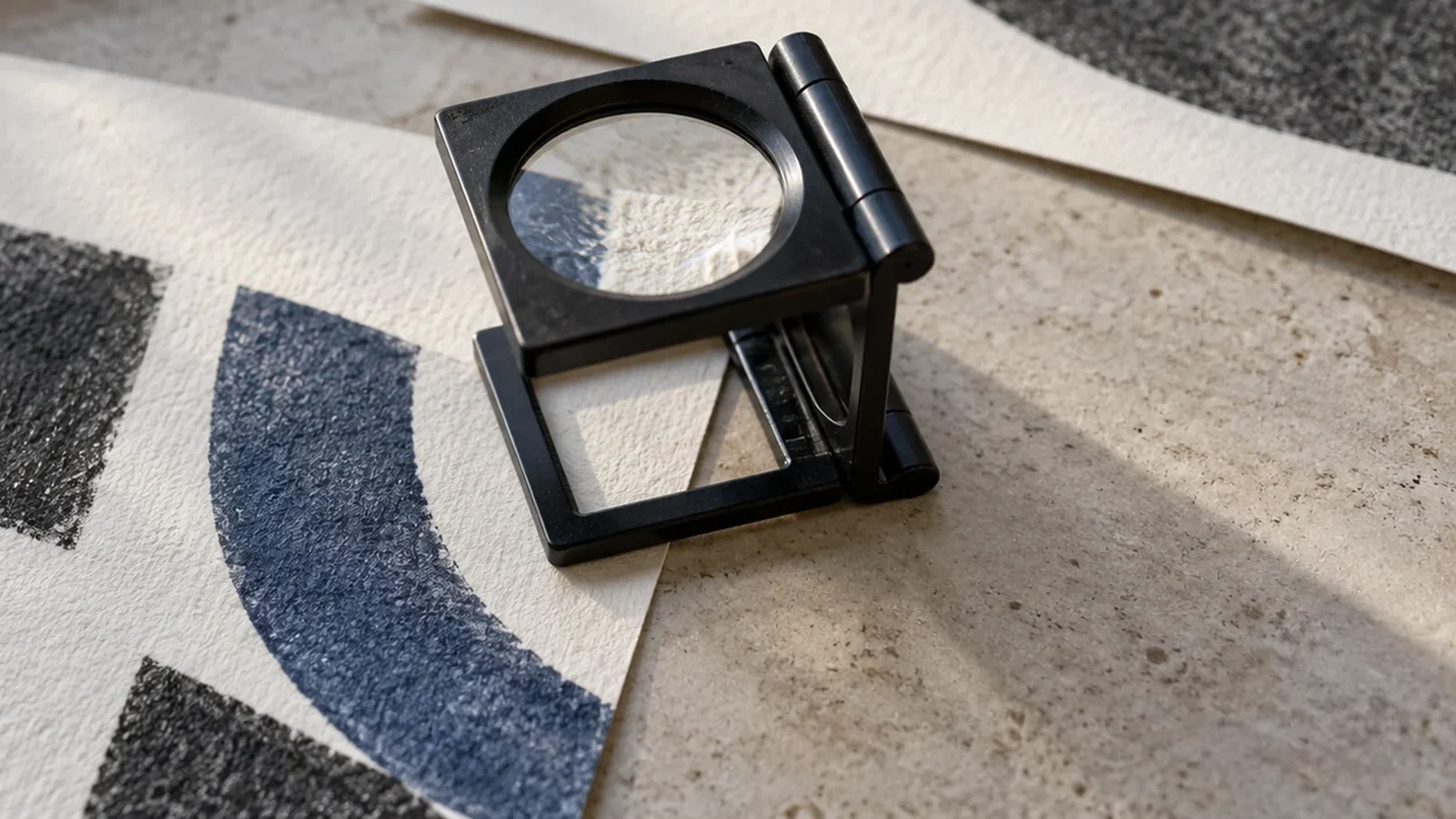
The photograph above shows bare paper fiber acting as the white element between dark ink areas. It illustrates the physical principle of a knockout on white stock, not a software measurement of a specific file.
Why does a white logo show in the editor but vanish in Overprint Preview or export?
In standard editing view, Illustrator draws a white-filled path as opaque white on your monitor regardless of its overprint attribute. The disappearance appears only when the software simulates or generates separated print output.
Adobe Illustrator’s overprinting documentation (updated April 8, 2026) explains that by default, when opaque overlapping colors print, the top color knocks out the area underneath. Overprinting prevents that knockout and makes the topmost overlapping printing ink appear transparent in relation to the underlying ink. Because process white uses zero cyan, magenta, yellow, and black ink, an overprinted process-white logo adds no ink and knocks out nothing—leaving the background ink uninterrupted.
According to Adobe’s White Overprint guide (updated April 8, 2026), unintentional white overprint commonly enters a file in two ways:
- Attribute inheritance on creation: An object with overprint enabled is selected, and then a new object with a white fill or stroke is created. Illustrator copies the appearance attributes of the previously selected object to the new white object.
- Recoloring an overprinted object to white: A non-white object that already has overprint applied—for example, a black logo mark set to overprint—is recolored to a white fill or stroke to make a reversed-out version. If you are checking how the black version was built before it was recolored, compare its swatch setup against the rich black versus Registration black print ad check.
Adobe notes that Illustrator includes the Discard White Overprint option (also labeled Suppress White Overprint in Output in dialog screenshots) in both File > Document Setup and File > Print. By default, this option is switched on in both dialogs, and if it is deselected in Document Setup, it can be overridden by selecting it in the Print dialog. When active, Illustrator removes the overprint attribute from process-white objects during printing or saving to EPS or PDF.
That behavior explains a frequent source of confusion between two people looking at the same file:
- The source artwork is unaffected: Adobe states that
Discard White Overprintaffects only the saved files or print output of an Illustrator file; the artwork itself remains unchanged. If you open the.aimaster and turn onView > Overprint Preview, the white logo will still disappear on screen until you removeOverprint FillorOverprint StrokeinWindow > Attributes. - Non-PDF exports and custom settings can differ:
Discard White Overprintis documented for printing or saving to EPS or PDF. IfDiscard White Overprintwas unchecked in Document Setup, or if the file was exported through a workflow that does not strip the attribute, the white object vanishes in the exported file as well.
Takeaway: Do not rely on Discard White Overprint to hide an error in a reusable logo master. Clear unintentional overprint on the actual process-white paths in Window > Attributes so the source file and the PDF agree.
Process white vs. Spot White: when must overprint stay on?
Check the swatch type in Window > Swatches before you uncheck Overprint Fill or Overprint Stroke. Turning off overprint fixes a 0% CMYK paper-white knockout, but it can break a print file built with a Spot White ink plate.
Adobe’s swatches documentation distinguishes Process Color (a combination of the four standard process inks: cyan, magenta, yellow, and black) from Spot Color (a premixed ink used instead of, or in addition to, CMYK process inks, created via Window > Swatches > New Swatch with Color Type: Spot Color as described in Create spot-color swatches).
Adobe’s White Overprint guide states an explicit boundary: Spot White objects with overprint are not affected by the Discard White Overprint operation.
| Decision factor | Process white (0% C, 0% M, 0% Y, 0% K) |
Spot White (Color Type: Spot Color) |
|---|---|---|
| What creates the white appearance on press | No ink is applied; the top object knocks out the ink underneath so the white paper shows through | Actual premixed white ink is printed from a separate spot separation plate (common on clear film, metallic stock, or dark substrates) |
Effect of Overprint Fill or Overprint Stroke |
Causes the white object to disappear on separations because 0% CMYK adds no ink and stops knocking out the background | Allows the Spot White plate and overlapping CMYK or spot plates to print on the same area without knocking each other out |
Affected by Discard White Overprint in Illustrator |
Yes. Removed automatically in print, EPS, and PDF output when the option is enabled (source .ai file remains unchanged) |
No. Adobe specifies that Spot White objects with overprint are unaffected by this setting |
| Correct action when diagnosing a logo | Select the individual white paths and uncheck Overprint Fill and Overprint Stroke in Window > Attributes |
Do not uncheck overprint blindly. Check the print provider’s separation instructions for the Spot White plate name and overprint rules |

The close-up above shows unprinted paper grain next to solid ink. When a job prints on clear film, metallic board, or dark dyed paper instead of white stock, leaving the substrate bare does not produce a white logo—the printer must lay down a separate white ink plate, and only the printer’s specification can tell you how that spot plate should be named and stacked.
What if white objects are still disappearing with overprint off?
Do not force a fix by rasterizing vector logo paths into a low-resolution image if unchecking Overprint Fill and Overprint Stroke does not bring the white logo back. Walk through these four verifiable checks in Illustrator and Acrobat Pro before sending the file to prepress:
1. Inspect nested paths inside groups and compound paths
Selecting a top-level logo group can hide an overprint setting that lives only on one child path or compound path inside the group. Ungroup or use the Direct Selection tool to click the specific missing white shape, then check Window > Attributes for Overprint Fill and Overprint Stroke. If the logo was dragged or pasted across applications and still behaves unexpectedly in View > Overprint Preview, inspect each compound path component individually and verify that the logo contains genuine vector paths using the vector logo file print checklist.
2. Check whether the white logo sits on a non-printing or template layer
In Illustrator, a layer can remain visible on your screen while being excluded from print and PDF output. According to Adobe’s Set layer and sublayer options guide:
- Open
Window > Layers. - Select the layer or sublayer containing the white logo, then choose
Options for "<Layer name>"from the Layers panel menu (or double-click the layer’s thumbnail) to open the Layer Options dialog box. - Compare Show and Print: Show displays all artwork in the layer on the artboard, whereas Print makes the artwork in the layer printable. Checking Template makes the layer a template layer.
If Show is checked but Print is unchecked, the white logo looks normal while you edit the artboard but drops out when printed or previewed as print output.
3. Check for hidden PDF layers and transparency interactions
When saving a PDF from Illustrator, Adobe’s PDF creation guide notes that selecting Create Acrobat Layers from Top-Level Layers (available with Acrobat 7 / PDF 1.6 or Acrobat 8 / PDF 1.7 compatibility) lets InDesign and Acrobat change layer visibility in the exported PDF. Meanwhile, Adobe’s Acrobat Pro Output Preview guide (updated February 26, 2026) notes that objects on hidden layers are not included in an onscreen preview.
In addition, Illustrator’s overprinting guide notes that when you print to a composite device, or when artwork contains overprinted objects that interact with transparency objects, File > Print > Advanced provides an Overprints menu to choose Simulate or Discard. Also remember Adobe’s warning in How to create Adobe PDF files in Illustrator: PDF creation settings do not automatically revert to default settings; apps reuse the last set of PDF settings selected. Always ask the print service provider for their recommended PDF preset or .joboptions file.
4. Keep unresolved cases as a prepress question
If the white object has Overprint Fill and Overprint Stroke off, sits on a layer with Print enabled, and still disappears in the exported PDF, stop modifying the brand master blindly. Record the exact object state in the diagnostic log below and hand both the native source file and the exported PDF to prepress for inspection.
How do you verify the exported PDF in Acrobat Pro and log the result?
Inspect the exact PDF file you plan to send in Adobe Acrobat Pro rather than trusting a standard PDF viewer window. Following Adobe’s Output Preview instructions (updated February 26, 2026):
- Open the exported PDF in Acrobat Pro and select All tools > Use print production > Output preview.
- Confirm that Simulate Overprinting is checked to simulate the blending and overprinting of colors in color-separated output. If you need to see white elements against a colored stock simulation, select Separations in the Preview menu and use Set Page Background Color, or toggle Simulate Paper Color (when deselected, paper color is monitor white).
- Switch the Preview menu to Color Warnings and select Show Overprinting. Pixels that trigger the overprinting warning highlight in the warning swatch color next to the option.
- Switch the Preview menu to Object Inspector and click the white logo in the document window to read its color mode, transparency, and object attributes. To save that evidence directly onto the PDF for your designer or printer, Alt-click (Windows) or Option-click (macOS) on the object—Acrobat inserts a comment prepopulated with all details found by the Object Inspector.
- Switch the Preview menu to Separations and toggle the checkboxes beside the individual process plates and any Spot Plates. Verify whether a process-white logo knocks out the underlying plates to
0%, or whether a Spot White logo appears on its dedicated spot separation plate.
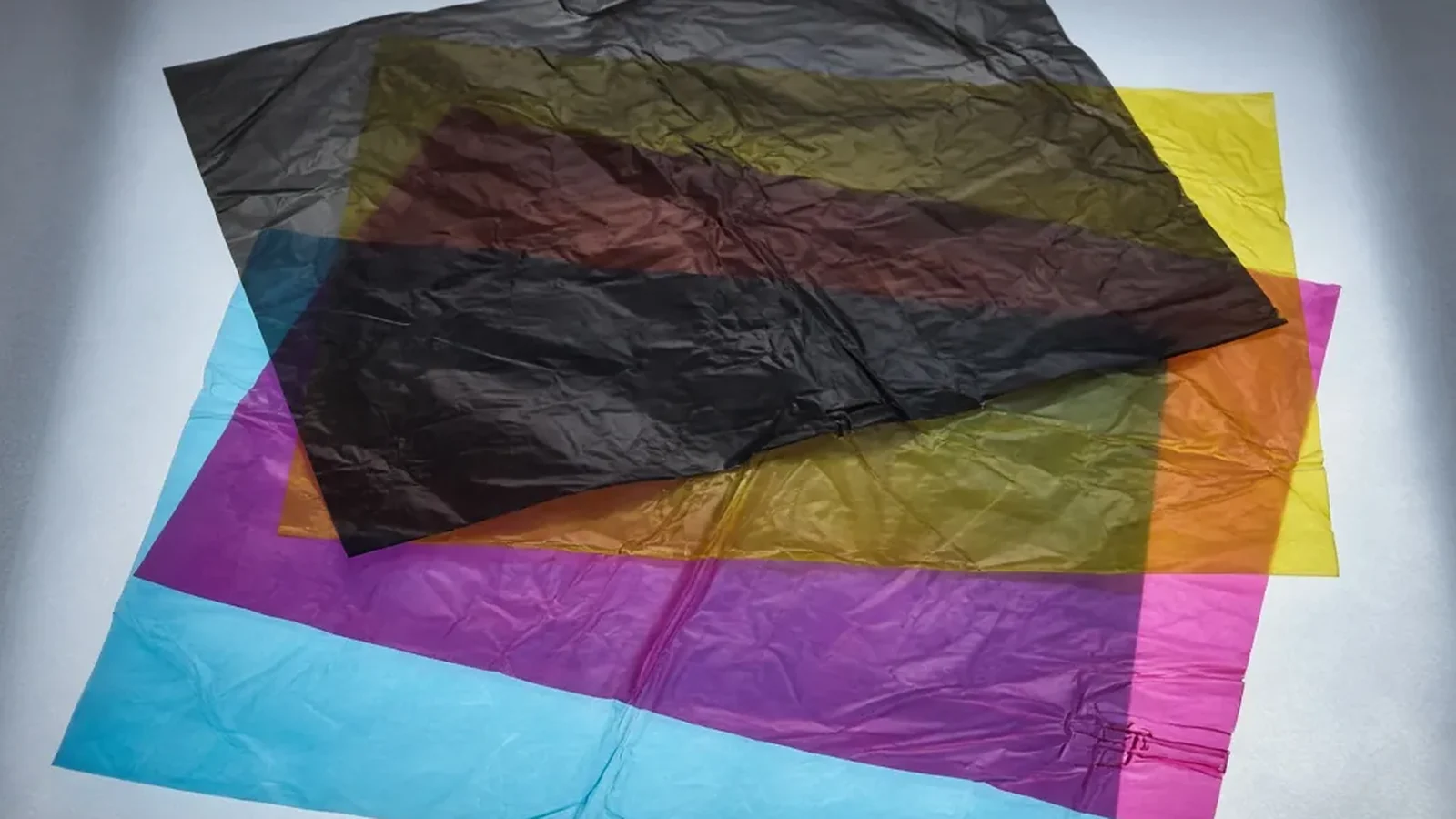
The stacked translucent sheets above illustrate how overlapping color layers combine when nothing knocks them out. In Acrobat Pro, use the Separations list and Object Inspector to read the actual plate percentages of your PDF.
Copy this diagnostic log into your job notes as you trace the white logo from the source artwork to the exported PDF. Leave any unverified field blank or mark it Not checked.
| Stage | Inspection item | Where to check | Recorded result (fill in for this file) |
|---|---|---|---|
| 1. Source artwork | Logo file name, revision, and application version | Native .ai file |
|
| 1. Source artwork | Behavior when View > Overprint Preview is turned on |
Illustrator: View > Overprint Preview |
|
| 2. Object attributes | Swatch name and color type (Process Color 0% CMYK vs Spot Color) |
Illustrator: Window > Swatches and Window > Color |
|
| 2. Object attributes | Overprint Fill and Overprint Stroke on individual child paths |
Illustrator: Window > Attributes (using Direct Selection on child paths) |
|
| 2. Object attributes | Layer Show, Print, and Template checkbox states |
Illustrator: Window > Layers > Options for "<Layer name>" |
|
| 2. Object attributes | Discard White Overprint checkbox state |
Illustrator: File > Document Setup |
|
| 3. Exported PDF | PDF preset or .joboptions file used for export |
Illustrator: Save Adobe PDF dialog |
|
| 3. Exported PDF | Show Overprinting warning result on the logo area |
Acrobat Pro: Output preview > Preview: Color Warnings |
|
| 3. Exported PDF | Object Inspector readout (color space, overprint, transparency) | Acrobat Pro: Output preview > Preview: Object Inspector (Alt-click / Option-click comment) |
|
| 3. Exported PDF | Separation plate percentages under the white logo | Acrobat Pro: Output preview > Preview: Separations |
|
| 4. Handoff status | Resolved in PDF / Requires Spot White confirmation / Unresolved for prepress | Job handoff record |
What minimal file package should you send prepress to confirm?
Acrobat Pro’s Output Preview documentation notes that while previewing separations on a monitor helps detect problems before printing separations, it does not preview trapping, emulsion options, printer marks, or halftone screens and resolution; those settings should be verified with the print service provider using integral or overlay proofs. Illustrator’s overprinting guide gives the same advice: check overprinted colors on separated artwork using integral proofs (each separation shown in register on a single sheet) or overlay proofs (separations shown in register on separate plastic sheets stacked together).
When your job uses a Spot White plate, or when a white logo still disappears after you verify that process-white overprint is off and layer printing is on, send prepress this minimal file set so they can verify the separation plates without guessing:
| Handoff item | What to include | What prepress confirms |
|---|---|---|
| 1. Exported print PDF (with Object Inspector comments) | The exact PDF exported with the printer’s preset, plus Alt-click / Option-click sticky-note comments from Acrobat Pro Object Inspector on the white logo |
Whether the white logo knocks out underlying plates or sits on the expected Spot White separation |
| 2. Editable native source package | The Illustrator .ai source file (and if placed inside a layout, the complete package checked with the InDesign links and fonts handoff guide) |
Whether nested compound paths, transparency interactions, or layer options in the source artwork need adjustment |
| 3. Visual reference proof | A flat composite preview or marked-up screenshot clearly circling where the white logo must appear against the background | That the intended visual appearance matches the separated plates before plates are imaged |
| 4. Color and Spot White instructions | Completed diagnostic log above, plus any color conversion notes from the CMYK versus RGB print handoff sheet | The exact Spot White swatch name, overprint/knockout rule, and whether an integral or overlay proof is required |
Method and sources
This diagnostic guide is compiled from Adobe’s official user guides for Illustrator and Acrobat Pro, checked on October 17, 2026: White Overprint (updated April 8, 2026), How to use overprinting in Illustrator (updated April 8, 2026), Previewing output in Adobe Acrobat Pro (updated February 26, 2026), Set layer and sublayer options in Illustrator, Use swatches in Illustrator, Create spot-color swatches in Illustrator, and How to create Adobe PDF files in Illustrator.
This site is an independent editorial publication and does not provide design, prepress, or printing services. The diagnostic log, boundary table, and handoff checklist organize documented software checks; they do not report a universal fix rate or replace your print provider’s press proof. Browse more print and brand-graphics checklists in the article index.